…although, in my case, I’ll forget again, so that’s why I’m posting this!!!
I’ve just tried to open my photos on the computer, looking for inspiration for today’s post. Little did I know that that very action would become the inspiration in itself!
Normally, I double-click on my required thumbnail image, and the picture opens full screen. That’s how it has always worked, on all of the computers I have used.
Today, for some reason, the computer merely honked at me and popped up one of those error messages with a red cross – the error read Class Not Registered. This occurred with every photo I clicked on, and I couldn’t get any of them to open.
 Desperate to open my photos, I chewed the inside of my mouth as I searched online for possible reasons as to why I would get this message, and ways in which to fix it. I found the error on the Microsoft Community pages, and read through post after post with possible resolution tips. One mentioned going into the start menu and running a ‘cleanse’ and another mentioned doing a ‘sweep’, both of which seemed a little too technical just to open a photo. The replies to these tips also seemed to indicate that they didn’t work.
I found one that said the default option to open the photos had been changed to something called TWINUI. I right-clicked on one of my pictures, and
opened the properties and saw that mine too were opening with this TWINUI thingy.
I then right-clicked on the picture again, and changed the option in the ‘open with’ section to Windows Photo Viewer, and the picture opened. I then double-clicked another picture, and received the Class Not Registered message again. So, it appeared I had to change the setting on every single picture I have saved. I’ve lots of pictures, so didn’t fancy doing that for each one and ending up with repetitive strain injury.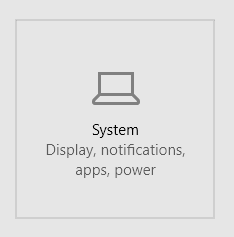
I couldn’t find anything within my photos folder to set the default program for all pictures, so sat and stared at the screen, and continued chewing my mouth.
Then, inspiration struck! Where from, I have absolutely no idea, but I was pointed in the direction of the Settings menu, and the System sub-menu in particular.
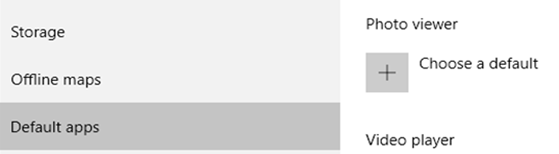
Within there, I found the Default apps, and noticed the Photo Viewer didn’t have a program associated with it. I clicked on the + and selected Windows Photo Viewer:
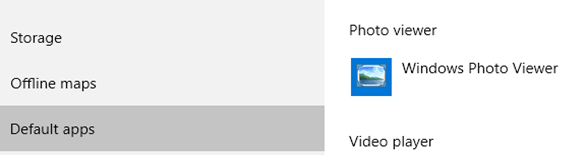
And that solved that problem. The latest Windows 10 update must have altered this setting, or put in a corrupt TWINUI file / folder / program (whatever it is!) Apparently, this is the default setting for Windows 10, so isn’t anything malicious or anything, but it’s mighty frustrating when things just stop working, seemingly of their own accord.
So with my problem fixed, I returned to my photos and couldn’t see anything that sparked any inspiration for today’s post. And then I thought “… hang on a minute!” and this post was born.
I’m sure it may come in useful in the future…


 The Mansionic Perspective
Leave a reply to Tom Merriman Cancel reply