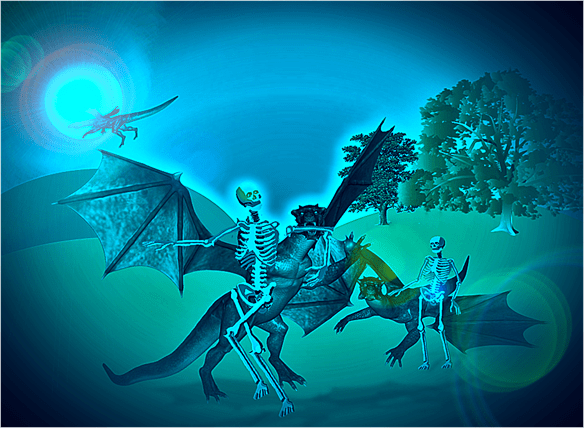
George’s next charade was a complete disaster, but Gladys-Marie and her new friend found it hilarious…
How Not To Train Your Dragon
15 responses to “How Not To Train Your Dragon”
-
*giggles and snorts*
So did I.LikeLike
-
Fetch!
LikeLike
-
Ha ha! Indeed, Andra!
LikeLike
-
-
Bahahahahaahah!
But let me tell you something!!
.
.
.
.
The art work is totally amazing! 😀 Love the dragon!!LikeLike
-
Glad it tickled your funny bone, Shree!
I must let you in on a little secret here. The dragons, hills, trees, and colours are all computer generated. Even the Skellys, actually, but the originals are my own making.
The dragons were created through a free piece of software from a company called Bryce 3D, where you can create people and animals and manipulate them in any 3D format you like. Some elements have to be bought, but the basic package is free, and quite easy to use. I also use another piece of their software to create some of the landscapes and seascapes I use in my posts. The hills in this post were created out of circles in PowerPoint, and the trees were PNGs obtained on line. But, I agree. The dragons are amazing!LikeLike
-
oh Tom….reading that I just realized you’re like me! So I shall tell you what my friends tell me when I start explaining (in detail) about anything someone says is good, done by me: JUST say Thank You!!
BUT then again, I really appreciate that you are willing to share with us the programs and methods you use to get the images 🙂 So thank you! 😀
Ooo..while we are on the subject of “how to”…you know that totally awesome link page of yours, where you arranged all our pictures AND inserted the links to our blogs? Would you mind sharing how you did that? I wanted to do something similar with my page …because it’s really cool…and I’m shameless, I’d do something similar BUT give credit where credit is due of course 🙂
I tried using PowerPoint but couldn’t seem to get it to work because when I save it as any of the accepted forms on WP the link is removed 😦Would really appreciate the tips 😀 Thanks!!
LikeLike
-
Ah, I know, Shree! I just didn’t want to take the credit for something that I hadn’t created, that’s all… although I did create the overall picture, I suppose! But thank you!
The links page is quite easy to do, once you have all the parts arranged! Are you sitting comfortably? Then I’ll begin…
Firstly, if you don’t use it already, you’ll need to download Windows Live Writer from http://www.microsoft.com. It’s a free package, and is really useful for setting up the post formats, and colours… I use it all the time! It may take a short while to download, but it’s a good tool. Also, I’ve heard that it may be being phased out (although I’m hoping it won’t be!)… so you’d best be quick!
Once downloaded, you’ll need to enter your account details for your blog, but the system talks you through it. And then, you’ll be ready to create your page.
In the top left hand corner, there’s a menu button, and if you click on it you’ll see a list of what’s available. Move the curser over the New Post option, and you’ll get to see two options, one for a new post, and the other for a new page. Select the New Page option.
Now, whilst all that is going on, you’d have collected all of your Gravatar pictures (or whatever else you want to use), and saved them somewhere on your computer. I copied the pictures into PowerPoint, and re-sized them there so they’re the same size (well, mostly, anyway!) before saving the pictures to my computer.
In Live Writer, along the menu ribbon at the top of the screen, there’s an option for Picture. Click on this, and then select the ‘From Your Computer’ option, and then you’ll be able to browse for the image you want to use. It can take a bit of time doing this, as each one has to be done individually.
Once your picture is in the post, double-click on it, and the menu options in the ribbon will change. Towards the middle of the menu, there’s an option that says ‘Link to: Source Picture’, and when you click on this, you’ll get the option to link to a web address. The system will then guide you through the rest.
Once done, in the Home menu, there’s the Publish button, which will post the page to your blog – but you will then need to go through the dashboard on the blog to activate the new page. For a new post, they just post live, but for pages they are initially set up inactive (or however they describe it!)
It’s a lot easier doing than explaining, Shree. Try it and see! Have fun!
And let me know if I’ve missed something out…
LikeLike
-
-
-
-
Awww… Looks like training a dragon is expensive – it’s costing George an arm and maybe a leg! 🙂
God Bless!
Prenin.
LikeLike
-
Hehehe!
I think he saved a bit with this one, Prenin. He managed to get his arm back, and his leg was only licked!LikeLike
-
-
-
Thanks, Nancy. I’ve had a quick look, and I’ll check out some of the posts later.
LikeLike
-


 The Mansionic Perspective
Would you like to leave a comment?